Jamie Bennett
on 1 June 2016
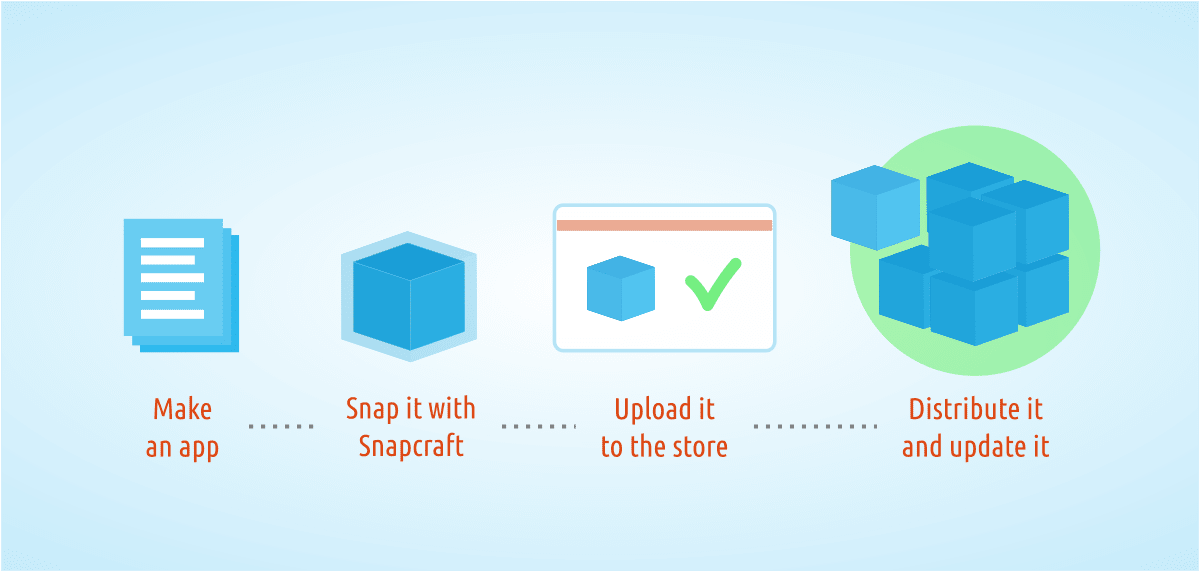
Distributing applications on Linux is not always easy. You have different packaging formats, base systems, available libraries, and distribution release cadences all of which contribute to the headache. But now we have something much simpler: Snaps.
Snaps are a new way for developers to package their applications, bringing with it many advantages over the more traditional package formats such as .deb, .rpm, and others. Snaps are secure, isolated from each other and the host system using technologies such as AppArmor, they are cross-platform, and they are self-contained, allowing a developer to package the exact software their application needs. This sandboxed isolation also improves security and allows applications, and whole snap-based systems, to be rolled back should an issue occur. Snaps really are the future of Linux application packaging.
Creating a snap is not difficult. First, you need the snap-based runtime environment that is able to understand and execute snaps on your desktop; this tool is named snapd and comes as default on all Ubuntu 16.04 systems. Next you need the tool to create snaps, Snapcraft, which can be installed simply with:
$ sudo apt-get install snapcraft
Once you have this environment available it is time to get snapping.
Snaps use a special YAML formatted file named snapcraft.yaml that defines how the application is packaged as well as any dependencies it may have. Taking a simple application to demonstrate this point, the following YAML file is a real example of how to snap the moon-buggy game, available from the Ubuntu archive.
name: moon-buggy
version: 1.0.51.11
summary: Drive a car across the moon
description: |
A simple command-line game where you drive a buggy on the moon
apps:
play:
command: usr/games/moon-buggy
parts:
moon-buggy:
plugin: nil
stage-packages: [moon-buggy]
snap:
– usr/games/moon-buggy
The above code demonstrates a few new concepts. The first section is all about making your application discoverable in the store; setting the packaging metadata name, version, summary, and description. The apps section implements the play command which points to the location of the moon-buggy executable. The parts section tells Snapcraft about any required plugins that are needed to build the application along with any packages it depends on. In this simple example all we need is the moon-buggy application itself from the Ubuntu archive and Snapcraft takes care of the rest.
Running snapcraft in the directory where you have the snapcraft.yaml file will create the moon-buggy_1.0.51.11_amd64.snap which can be installed by running:
$ snap install moon-buggy_1.0.51.11_amd64.snap
To seen an example of snapping something a little more complex, like the Electron-based Simplenote application see here, for a tutorial online here and the corresponding code on GitHub. More examples can be found on the getting Ubuntu developer website here.